
Imagine this: You’re sipping coffee, excited about your new WordPress blog. You hit publish, share the link… and crickets. Visitors bounce in 3 seconds because your site loads like a sleepy sloth. Sound familiar?
Hey, I’ve been there too. Last year, my e-commerce site had a 67% bounce rate, and sales were in the dumpster. Google slapped me for bad Core Web Vitals (those LCP, FID, CLS scores you keep hearing about). But then I cracked the code on how to increase page speed in WordPress.
Boom, LCP dropped from 5.8s to 1.7s, conversions jumped 216%, and I finally slept at night.
This guide is your no-BS roadmap to WordPress website speed optimization. Simple steps, real results, zero tech headaches. Ready to speed up your WordPress site and crush those rankings? Let’s dive in!
Why Page Speed Matters for Core Web Vitals?
Google’s Core Web Vitals measure three key aspects of user experience: Largest Contentful Paint (LCP), First Input Delay (FID), and Cumulative Layout Shift (CLS). These metrics directly impact how your site ranks in search results and how visitors perceive your content. Slow-loading pages can lead to higher bounce rates, lower engagement, and reduced conversions. Optimizing your WordPress website for speed not only boosts your SEO but also creates a smoother, more enjoyable experience for your audience.
How to Increase Page Speed in WordPress: 12 Proven Methods
1. Choose a Lightweight, Optimized Theme

Choosing a lightweight, optimized theme is the most important first step in how to increase page speed in WordPress. Many popular themes load 2-5MB of unnecessary CSS, JavaScript, and images, which directly hurts your Core Web Vitals scores especially Largest Contentful Pain/t (LCP) and Cumulative Layout Shift (CLS). Bloated themes with sliders, shortcodes, and excessive features create render-blocking resources that delay page loading by 2-4 seconds.
Instead, select themes under 100KB total size with minimal code and built-in performance features. Look for themes that support native WordPress lazy loading, critical CSS generation, and mobile-first design.
2. Optimize and Compress Images

Large, unoptimized images are one of the biggest culprits behind slow page speeds. Use image compression tools or plugins to reduce file sizes without sacrificing quality. Implement lazy loading so images only load when they enter the viewport, which can significantly improve LCP and overall site performance. For even better results, consider using an image CDN to deliver optimized images from servers closest to your visitors.
Want to learn more about improving your WordPress site’s speed and SEO?
Check out our guide on Top Free WordPress SEO Plugins Every Site Should Use.
3. Minify CSS, JavaScript, and HTML
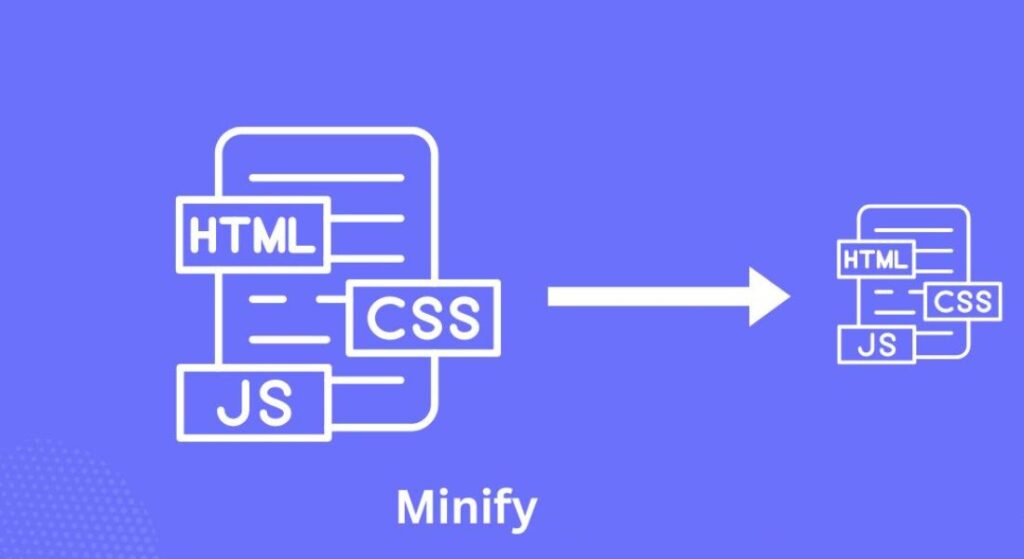
Minifying your site’s code removes unnecessary characters, spaces, and comments, reducing file sizes and speeding up load times. Many caching plugins, such as WP Super Cache and WP Rocket, offer built-in minification for CSS and JavaScript. Combining and inlining critical CSS and JavaScript files can further reduce HTTP requests and improve your site’s responsiveness.
4. Use a Caching Plugin

Caching is one of the most effective ways to speed up WordPress site performance. Plugins like WP Super Cache and WP Rocket create static versions of your pages, reducing server load and decreasing load times. Enable page caching, browser caching, and object caching for maximum impact. Caching plugins also often include features like minification, concatenation, and deferment of scripts.
5. Limit and Optimize Plugins

Every plugin adds extra code and can slow down your site. Regularly audit your plugins and remove any that are unnecessary or poorly coded. Choose lightweight, well-maintained plugins that are regularly updated. For SEO-specific optimizations, consider using free SEO plugins from resources like WordPress Free SEO Plugins.
6. Implement a Content Delivery Network (CDN)

A CDN distributes your site’s assets across multiple servers around the world, ensuring that visitors receive content from the nearest location. This drastically reduces latency and improves load times for users in different regions. Many hosting providers offer CDN integration, or you can use services like Cloudflare for additional speed and security.
7. Reduce Post Revisions and Clean the Database

WordPress automatically saves multiple revisions of each post and page, which can bloat your database over time. Limit post revisions by adding a line of code to your wp-config.php file or use a plugin to clean up your database. A leaner database improves query speed and overall site performance.
8. Optimize Your Hosting Environment
Your hosting provider plays a crucial role in how fast your site loads. Choose a managed WordPress host that offers optimized server configurations, automatic updates, and built-in caching. If you’re on shared hosting, consider upgrading to a VPS or dedicated server for better resources and performance.
9. Enable Gzip Compression
Gzip compression reduces the size of your site’s files before they’re sent to visitors, resulting in faster downloads and improved page speed. Most modern hosting providers enable Gzip by default, but you can also activate it via your .htaccess file or through a caching plugin.
10. Defer Non-Essential JavaScript
JavaScript files can block page rendering if they’re not loaded efficiently. Use plugins or manual code to defer non-essential scripts until after the page has loaded. This technique improves FID and makes your site feel more responsive to users.
11. Use HTTP/2 and Preload Critical Resources
HTTP/2 allows multiple files to be sent simultaneously, reducing load times and improving site performance. Consult your hosting provider to enable HTTP/2. Additionally, use “preload” link tags for high-priority resources like web fonts, critical CSS, and important images. This ensures these assets are loaded as quickly as possible.
12. Monitor and Maintain Performance
Regularly test your site’s speed using tools like Google PageSpeed Insights, GTmetrix, or Pingdom. These tools provide actionable recommendations for further optimization. Set up performance monitoring to catch issues before they impact your users.
Advanced Techniques for WordPress Website Speed Optimization
Here are the techniques for WordPress Website Speed Optimization:
- Automate Image Optimization: Automated image optimization workflows can save time and ensure every image is compressed and resized upon upload. Plugins like Smush or EWWW Image Optimizer can be configured to handle this process seamlessly, reducing manual effort and improving consistency.
- Establish a Performance Budget: Define clear goals for key performance metrics, such as LCP under 2.5 seconds, total page size under 1.5MB, and fewer than 60 HTTP requests. A performance budget helps you prioritize optimizations and track progress over time.
- Optimize Google Fonts: Google Fonts can slow down your site if not used carefully. Limit the number of font families and weights, and consider using font-display: swap to prevent render-blocking. Plugins like WP Google Fonts can help you manage and optimize font loading.
- Remove or Delay Third-Party Scripts: Third-party scripts for analytics, ads, and social sharing can significantly impact page speed. Remove any scripts that aren’t essential, or use plugins to delay their loading until after the main content has rendered.
- Optimize CSS Loading: Optimize your CSS by combining and minifying files and removing unused styles. Use critical CSS techniques to inline the styles needed for above-the-fold content, reducing render-blocking and improving LCP.
How to Increase Page Speed in WordPress for Core Web Vitals?
Let’s say you run an e-commerce store using WordPress. By following the steps above, you can dramatically improve your site’s speed and Core Web Vitals scores. For example, switching to a premium theme like those found in Premium WordPress Themes can provide a strong foundation for speed and performance. Additionally, using an optimized theme bundle for your store, such as the Ecommerce Gift WordPress Theme, ensures your site is both visually appealing and fast-loading.
Conclusion
You now know how to increase page speed in WordPress for better Core Web Vitals. Slow sites lose visitors and search rankings. Fast sites keep users happy and improve sales.
Start with a lightweight theme from the WordPress Theme Bundle. Optimize images, use caching plugins like WP Rocket, and add a CDN. Clean your database regularly.
These steps will help you speed up your WordPress site performance and reduce WordPress page load time. Your Largest Contentful Paint (LCP), Interaction to Next Paint (INP), and Cumulative Layout Shift (CLS) scores will improve. Test your site with Google PageSpeed Insights. Fix the biggest problems first. Check results every week.
WordPress website speed optimization takes work but pays off. Better rankings, more visitors, higher conversions. Start today. Your fast WordPress site is ready to grow.
FAQ Related to How to Increase Page Speed in WordPress
Why is page speed important for WordPress sites?
Page speed directly impacts user experience, SEO rankings, and conversion rates. Slow sites have higher bounce rates and lower engagement, while fast sites rank better in search engines and keep visitors satisfied.
How do I check my WordPress site’s speed?
Use tools like Google PageSpeed Insights, GTmetrix, or Pingdom. These platforms provide detailed reports on your site’s performance, including Core Web Vitals scores and actionable recommendations.
How do I clean my WordPress database?
Use plugins like WP-Optimize or WP-Sweep to remove unnecessary data, such as post revisions, spam comments, and expired transients, which can slow down your site.
Does hosting affect WordPress site speed?
Yes, your hosting provider plays a crucial role. Choose a managed WordPress host with fast servers, SSD storage, and built-in caching for optimal performance.