
WordPress is one of the most flexible content management systems available today. Whether you are running a blog, business website, portfolio, or online store, WordPress themes control how your website looks and functions. However, there often comes a point when built-in customization options are not enough. That is when you need to understand how to modify WordPress theme files properly.
Mastering theme customization gives you complete control over your website’s structure, appearance, and overall functionality. Rather than depending solely on default settings, you can adjust templates, fine-tune design elements, and add features that align perfectly with your goals. In this guide, you will learn the right way to make these changes safely and efficiently, ensuring your website remains stable and performs smoothly.
Understanding WordPress Theme Structure
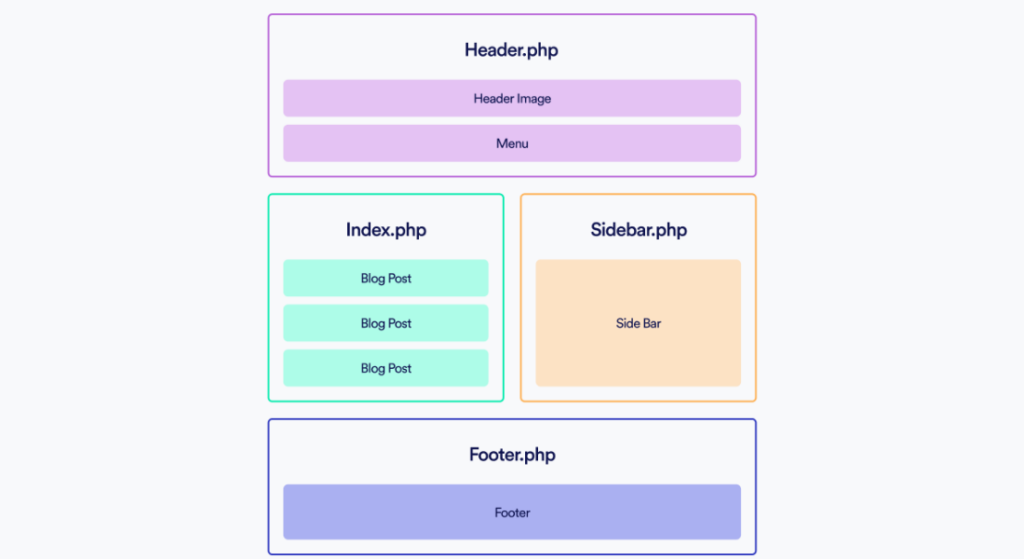
Before learning how to modify WordPress theme files, it is important to understand how themes are structured.
A WordPress theme is made up of several core files:
- PHP files (header.php, footer.php, single.php, page.php)
- CSS files (style.css)
- Functions file (functions.php)
- Template parts and sometimes JavaScript files
When you learn how to modify a WordPress theme, you are essentially adjusting these files to change how content is displayed or styled. For example, header.php controls your website header. The style.css file controls visual appearance. The functions.php file adds or modifies features.
Why You May Need to Modify WordPress Theme Files
There are many reasons website owners want to learn how to modify WordPress theme. You may want to redesign your blog layout, add a custom section below posts, remove footer credits, insert tracking scripts, or adjust how product pages display. While you can edit WordPress themes using the Customizer, deeper structural changes require file modification. That is why knowing how to modify WordPress theme correctly is essential for serious customization.
The Most Important Rule: Use a Child Theme
If you truly want to understand how to modify a WordPress theme safely, you must use a child theme.A child theme allows you to edit WordPress themes without touching the parent theme directly. This ensures your changes remain safe during updates. If you modify the parent theme files directly, your changes will disappear after the next theme update.
When learning how to modify WordPress theme files, using a child theme is considered best practice.
If you are new to WordPress, modifying theme files might sound technical or complicated. However, once you understand the various methods, it becomes much easier. There are three main methods you can use, and each one has a different level of risk and difficulty.
1. Using the WordPress Theme File Editor
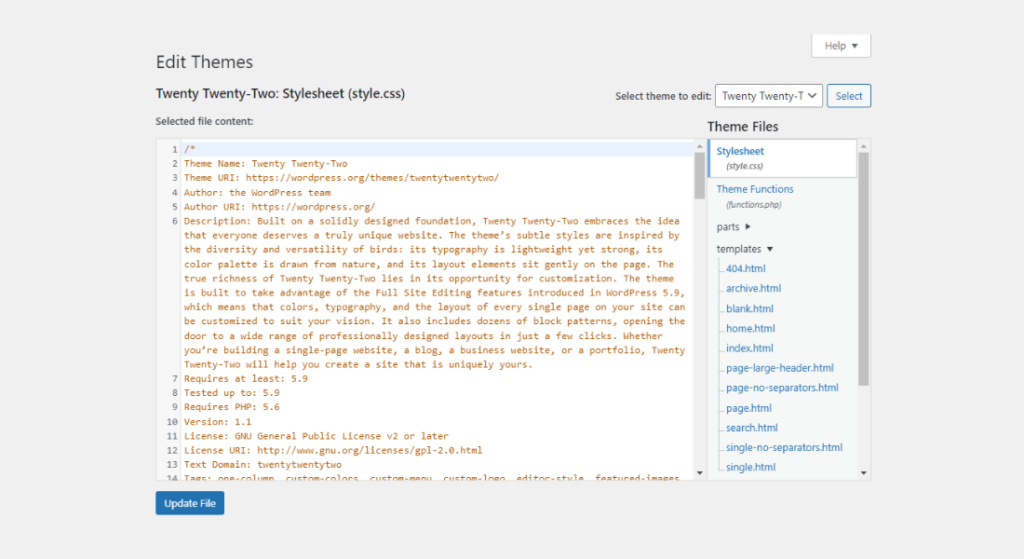
WordPress has a built-in option that lets you edit theme files directly from your dashboard. You can find it by going to Appearance → Theme File Editor.
This option allows you to open files like header.php, footer.php, or style.css and make changes right there inside WordPress.
While this is quick and convenient, it is not the safest option for beginners. If you accidentally delete something or make a small coding mistake, your website can stop working immediately. Since the changes happen live, there is no safety layer unless you have a backup ready.
This method is best used only if you understand basic coding and feel confident making changes.
2. Using FTP or Your Hosting File Manager
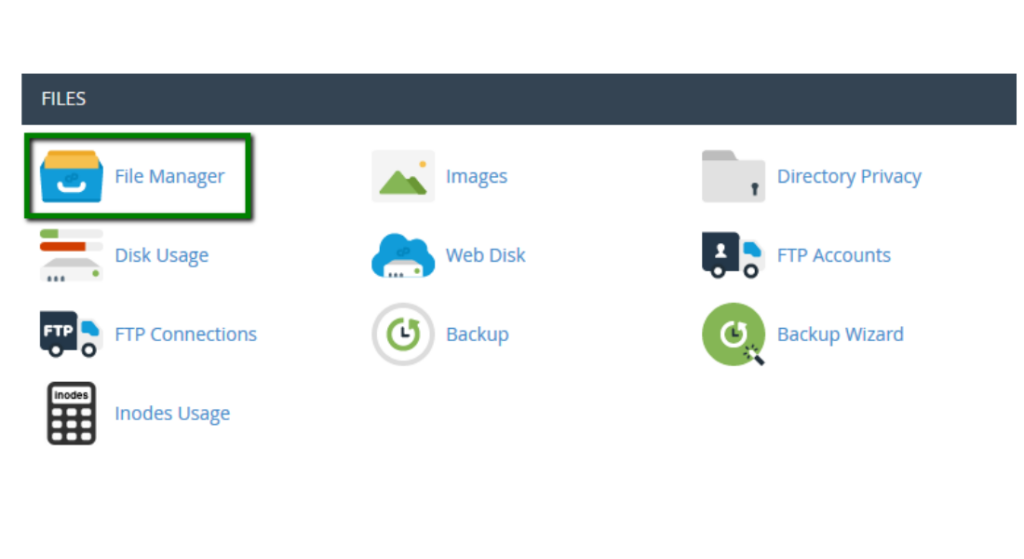
Another way to modify theme files is by accessing your website files through FTP (File Transfer Protocol) or your hosting provider’s file manager.
With this method, you download the theme file to your computer, edit it using a code editor, and then upload it back to your website. This is safer because you can review your changes before uploading them.
It also makes it easier to fix mistakes. If something goes wrong, you can simply upload the original file again. For beginners who want more control and a safer editing environment, this is a better option than using the dashboard editor.
3. Using a Child Theme (Recommended Method)
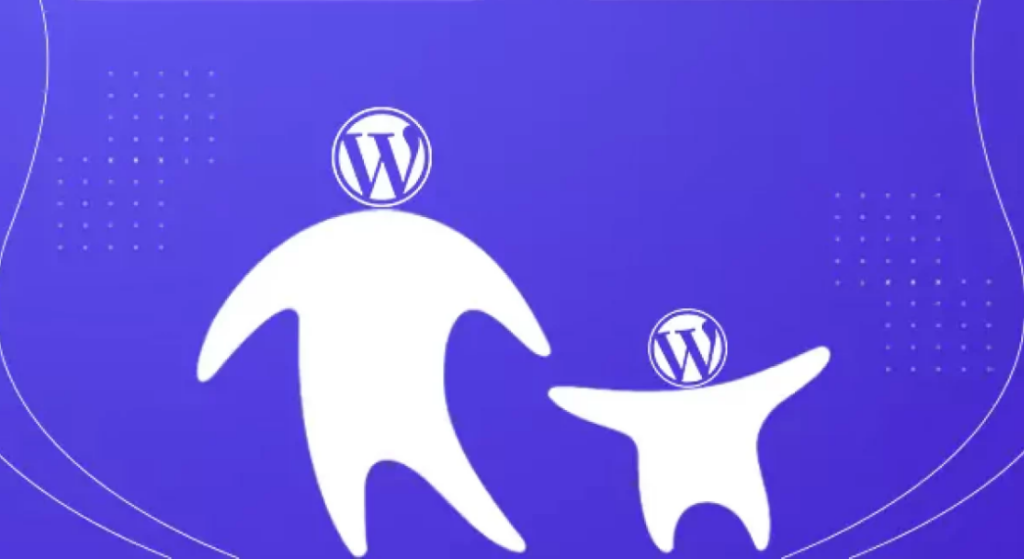
The safest and most professional way to modify WordPress theme files is by using a child theme. A child theme is like a copy layer that sits on top of your main theme. Instead of editing the original theme files, you copy the file you want to change into the child theme folder and edit it there.
This is especially important when you are working with professionally designed themes, such as those available in the premium WordPress themes collection, which receive regular updates and feature improvements. If you edit the main theme directly, all your changes will disappear when the theme updates. But if you use a child theme, your changes stay safe even after updates.
For beginners, this method might sound slightly technical at first, but it is the most reliable way to customize your website without risking your work.
How to Modify CSS in a WordPress Theme
If you only want to change things like colors, fonts, button styles, or spacing, you usually do not need to edit the main theme files. WordPress has an easy option where you can add custom CSS without touching any important files. Just go to:
Appearance → Customize → Additional CSS
Here, you can paste small pieces of CSS code to change how your website looks. For example, you can change the background color, adjust font size, or style buttons differently. This is the safest way for beginners who are learning how to modify a WordPress theme. You are only changing the design, not the structure of the website. So there is very little risk of breaking anything. However, if you want to change the layout of pages, move sections around, or edit how posts are displayed, then CSS alone is not enough. In those cases, you may need to edit template files inside the theme.
So in simple terms:
- Use Additional CSS for design changes.
- Edit theme files only if you want to change layout or structure.
Starting with CSS is always easier and safer for beginners.
Editing Template Files
Template files decide how your website content is shown on the screen. They control the structure and layout of different sections of your website.
For example:
- single.php controls how your blog posts look
- page.php controls how regular pages are displayed
- header.php manages the top section of your website
- footer.php controls the bottom section
If you want to change how your blog posts appear — maybe adjust the title position, move the featured image, or add extra content — you will need to edit these template files.
This is an important step when learning how to modify WordPress theme, because template files control the structure, not just the design.
If you are using themes like Solar WordPress Theme, customization becomes much easier. The theme is cleanly coded, flexible, and built for performance, which means you can safely adjust layouts without affecting speed or stability. It is designed to give you freedom while keeping everything organized and secure.
Modifying the functions.php File
The functions.php file is used to add extra features to your WordPress theme. Think of it as a place where you can add new functionality to your website.
For example, you can use it to:
- Add custom scripts
- Insert Google Analytics tracking code
- Create new menus
- Add widget areas
This file is powerful, but it must be handled carefully. Even a small mistake can cause errors on your website.
If you are learning how to modify WordPress theme files, it is always a good idea to test changes on a staging site (a test version of your website) before applying them to your live site. This way, if something goes wrong, your main website will not be affected.
💡 Pro Tip: Always test theme file modifications on a staging website before applying them to your live site. This protects your website from unexpected errors.
Full Site Editing (FSE) Themes Simplify Customization
Modern WordPress themes now support Full Site Editing. This makes it easier to modify layouts visually without heavy coding. For example, the FSE Political WordPress Theme allows block-based editing for headers, footers, and templates. This reduces the need to manually edit PHP files. If you are new to modifying a WordPress theme, FSE themes can significantly simplify the process.
Choosing the Best WordPress Themes for Easy Editing
If you plan to modify WordPress theme files, start with a professionally built theme.
The best WordPress themes are:
- Well coded
- Lightweight
- Regularly updated
- Built for customization
ThemesCarts offers a wide range of customizable themes. If you build multiple websites, the WordPress Theme Bundle is an excellent option. Using the best WordPress themes ensures that when you modify WordPress theme files, you encounter fewer conflicts and errors.
Best Practices to Follow When Customizing a WordPress Theme
Before making any changes, always take a backup of your website. Use a child theme so your edits are not lost during updates. Make small changes one at a time and check your site after each edit. If possible, test changes on a staging site first.
These simple steps help you customize your WordPress theme safely and avoid problems.
Common Mistakes to Avoid
Many beginners start editing their theme without proper preparation. If you are learning to modify WordPress theme, try to avoid these common mistakes.
Do not edit the main (parent) theme directly, because your changes will be lost after an update.
Do not make too many changes at the same time, as it becomes hard to find the problem if something breaks.
Do not skip theme updates, since updates improve security and performance.
And never edit your live website without taking a backup first.
Conclusion
Understanding how to modify WordPress theme files gives you complete control over your website’s appearance and functionality. While WordPress provides basic customization tools, true flexibility comes when you know how to safely and effectively modify a WordPress theme.
Always start with reliable and well-built themes. Whether you choose Solar, FSE Political, individual premium themes, or the WordPress Theme Bundle, working with professionally developed themes makes customization easier and safer.
Once you understand how to modify WordPress theme correctly, you can build unique, powerful, and fully personalized websites without limitations.
Frequently Asked Questions (FAQ)
1. Is it safe to modify WordPress theme files?
Yes, it is safe if done correctly. Always use a child theme and create a backup before modifying WordPress theme files.
2. What is the best way to modify a WordPress theme without losing changes?
The best way to modify a WordPress theme is by using a child theme. This ensures your edits are not overwritten during theme updates.
3. Can beginners learn to modify a WordPress theme?
Yes, beginners can learn how to modify WordPress theme by starting with small CSS changes and gradually understanding template files.
4. What happens if I edit the parent theme directly?
If you edit the parent theme directly, all changes will be lost after a theme update. That is why learning to use a child theme is important.
5. Do I need coding knowledge to modify WordPress themes?
Basic knowledge of HTML, CSS, and PHP is helpful. However, with modern Full Site Editing themes, you can modify WordPress theme layouts visually with minimal coding.
6. Which are the best WordPress themes for easy customization?
The best WordPress themes for customization are professionally coded, regularly updated, and flexible. ThemesCarts offers several premium options and a complete WordPress Theme Bundle for advanced customization needs.